Saturday, June 16, 2018

Import Old Backups to iTunes When Music Lost


Import Old Backups to iTunes When Music Lost


If you have an old backups of iTunes that contains your lost music and you want to import this old iTunes backup music to the current iTunes that you use. You can do that if you have a backup on your computer or a hard drive, so the backup need to be available on your computer or external drive connected to your computer. We will show you now how to do it.
#1. iTunes Lost My Music? Import them from Old Backups on PC


Step 1. Find out where is your old iPhone backups and then copy the music to another folder. This folder can be created on the desktop where is easily to be found.


Step 2. Open iTunes. Click "File" on the upper left corner. And then choose "Add File to Library" or "Add Folder to Library".
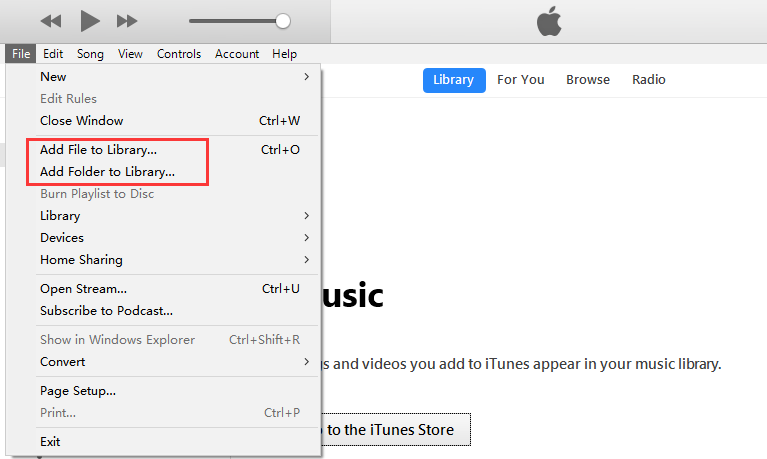


Step 3. Locate the music files or the music folder where you create on desktop.


Step 4. Click "Open". The music will be import to your iTunes Libarary. And now you get your iTunes Back.
#2. Transfer iTunes Backups from External Drive to iTunes


Step 1. Attach the external hard drive that contains the old iTunes backup to the computer.


Step 2. Navigate through the hard drive to find the iTunes music folder you backed up to it.


Step 3. Drag the iTunes music folder from the external hard drive to the desired location on your computer. In some cases, you may need to put it in the default location used by iTunes.


Step 4. While holding down the Option key on a Mac, or the Shift key on Windows, launch iTunes.


Step 5. Click "File > Add File to Library or Add Folder to Library” which is same as the last method.


Step 6. In this windows, you can browse through the folder that you copied from the external hard drive. On Windows, select the music file in the folder.


Gihosoft iPhone Data Recovery is a professional iPhone Data Recovery software to get back all your lost text message, photo, video, call history, note, contact and more from iPhone/iPad/iPod Touch. It offers a full solution to recover your lost data in different tough situations. Besides recovering data directly from iPhone, iPad and iPod touch, it also allows you to recover data from iCloud and iTunes backup files.
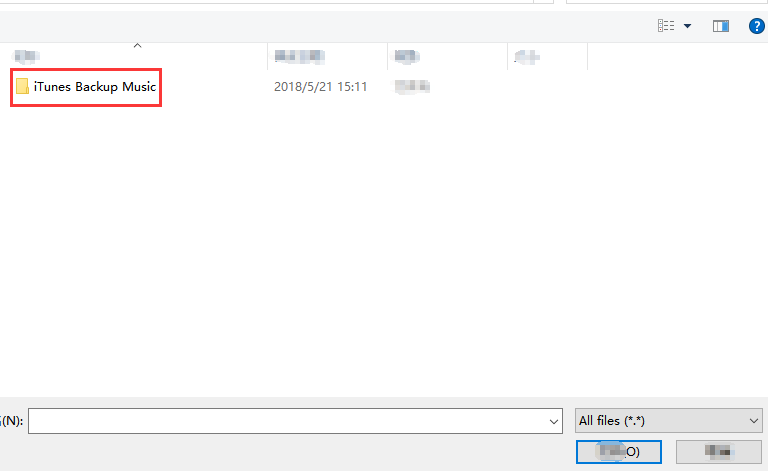


Step 7. Now click “Open”


Step 8. When it finish. You can now disconnect the external hard drive from your computer.

How to Create Contact Groups on iPhone (2018)

How to Create Contact Groups on iPhone (2018)

Create Contact Groups on iPhone (2018)

Part 1: Backup Your Device First


The first thing you must do is take a backup of your iPhone. It can’t be stressed enough how important it is. If your iPhone crashes when you are making a group chat, then you could lose a lot of your personal data.


Fortunately, this isn’t a common occurrence, but it isn’t worth taking the risk.
Part 2: How to Create Contact Groups on iPhone


After you’ve backed up your iPhone you can move on and use one of the following solutions to create contact groups on iPhone.


Sponsor ads:
Gihosoft iPhone Data Recovery Free


Make A Contact Group Using App
1Create Contact Groups on iPhone via iCloud


A popular way of creating iPhone groups is to use iCloud. This can make it easier to create large groups as a computer is used to do so.


On your iPhone, go to “Apple ID > iCloud” (or for older iOS, just tap “iCloud” from the main Settings menu) and enable the “Contacts” slider.


Go to a computer and open the iCloud website. Sign in to your iCloud account and click “Contacts”.


At the bottom-left, click the + icon and select “New Group”. Name it accordingly, click “All Contacts”, and drag the contacts you want into the group chat.


2Make A Contact Group Using App


You can also use a third-party app to create a group on your iPhone.


Open the “App Store” and search for “Groups”.


Download the app and open it.


Simply tap “Add New Group” followed by “No Contacts - Add Some” to add people.


Part 3: Tips You Should Know about Contact Group on iPhone


Now that you know how to create contact groups on iPhone, here are a few handy tips for managing your group chats.


1Delete Groups on iPhone


Are you in too many group chats? Here’s how you can delete them and remove yourself from them.


On a computer, go to the iCloud website and sign in using your iCloud account.


Choose “Contacts” and click on the group chat that you want to delete.


Click the settings icon at the bottom-right and click “Delete”. You need to click “Delete” again to confirm.


2Email Your Contact Group on iPhone


If for whatever reason you aren’t able to message in your group chat, you can email them. As long as you are signed into your email account on the Mail app then you will be able to do this on your iPhone.


Launch the “Mail” app and tap the compose icon at the bottom-right.


In the “To” entry, start typing the name of the group.


After a few letters, the group should be shown. Tap on it then enter your message and hit “Send”.


3 Send A Message to Your Contact Group


Finally, you can message the contact group through your messaging app. This is the most convenient way to go about messaging and managing your iPhone group chats and therefore it is ideal.


Open the iMessage app and tap on the compose icon at the top-right.


Next, tap the “To” space and enter the group name that you want to message.


Enter your text message and press the send button. This chat will be accessible for future messages unless you delete it. Gihosoft iPhone Data Recovery is a professional iPhone Data Recovery software to get back all your lost text message, photo, video, call history, note, contact and more from iPhone/iPad/iPod Touch. It offers a full solution to recover your lost data in different tough situations. Besides recovering data directly from iPhone, iPad and iPod touch, it also allows you to recover data from iCloud and iTunes backup files.


Wednesday, June 13, 2018

How to Unpair Apple Watch Without iPhone 2018

How to Unpair Apple Watch Without iPhone 2018

Part 1. Unpair Apple Watch directly from Settings


Let us make use of the settings option in your Apple watch in order to unpair your iPhone in its absence. The steps are very simple and you can complete the procedure in no time. Make a note of the given steps for successful completion of the process.


Step 1: Unlock your Apple watch and go to the ‘Settings’ option.


Step 2: Click on ‘General’ from the expanded list of Settings.


Step 3: Select ‘Reset and Erase all contents and settings’.


By choosing the reset and erase all contents and settings on your Apple watch, you will be able to restore the system to its factory settings thereby removing its old settings.
Part 2. Erase Apple Watch from Find My iPhone online


You can now make use of iCloud platform to remove the Apple watch paring settings from your iPhone in an online mode. Here you are going to use computer. Open you computer and go to the iCloud official website. Now sign in using your Apple ID credentials. Tap on ‘Find My iPhone’ and surf through the listed devices. Click on ‘Select all devices’ and choose your Apple watch from the displayed list. Select ‘Erase Apple watch’ and proceed with the ‘Next’ button. You have to click the ‘Next’ button until the Apple watch is completely removed from your iPhone. Finally tap the ‘X’ symbol near your Apple watch to unpair it from your iPhone.


You have easily erased Apple watch from iPhone in an online mode. To carry out this process it is enough if you sign in to your iCloud platform. Even in the absence of your iPhone you can now remove the pairing features of your Apple watch. This process will be really helpful during emergency situations at the time of loss.


Part 3. How to Unpair Apple Watch from iPhone


In case if the Apple watch and iPhone is in the close proximity then you can make use of the below given guidelines to carry out the un-pairing process.


Step 1: Place your iPhone and Apple watch nearby.


Step 2: Unlock your iPhone and launch your Apple watch.


Step 3: You can identify your Apple watch at the bottom of the screen and click on the icon.


Step 4: Select the ‘Unpair Apple watch’ option in order to alter the pairing settings between the iPhone and Apple watch.


Step 5: Confirm t the prompt regarding the un-pairing process again.


Step 6: The Apple watch gets detached from your iPhone in no time.


After this process iPhone will try to make a copy of the content available in the Apple watch for future reference. The un-pairing process leads to the deletion of the existing content present in the Apple watch. It is better to setup a backup to avoid unnecessary issues in future.

Do you like this story?

Sponsor Ads:
Gihosoft iPhone Data Recovery is a professional iPhone Data Recovery software to get back all your lost text message, photo, video, call history, note, contact and more from iPhone/iPad/iPod Touch. It offers a full solution to recover your lost data in different tough situations. Besides recovering data directly from iPhone, iPad and iPod touch, it also allows you to recover data from iCloud and iTunes backup files.

Tuesday, August 8, 2017

How To Download PS4 Remote Play For Your iPhone/iPad ?

Are you interested in PS4 games on your iPhone/iPad? There is now a new app, called PS4 Remote Play for iPhone and iPad to download. Remote Play is a feature in the PlayStation 4 that only a few people are familiar with it. This feature will allow you to remote play officially on your Mac/ Windows computer. All you need is installing the Remote Play app on your computer and then connect your PS4’s DualShock 4 controller into the computer through USB or Bluetooth dongle. You can also use this feature on you iPhone and iPad, though it’ still unofficial on iOS devices, it works quite well. Must Read:recovering deleted kik messages
Download PS4 Remote Play for iPhone and iPad Must Read:How to get iPhone out of recovery mode ?
  • For the start, you should launch the App Store on your device and download an app, named R-Play for the price at $9.99. The app will provide the Remote Play functionalities of the PS4 right on your iPhone/iPad.
  • After that, connect your PS 4 to the router with the help of a LAN cable and also connect your iOS device to a 5GHz Wi-Fi network. If you like, you can also connect to remote Play via the internet.
  • The Remote Play in R-Play app can give the resolution in a game for PS4 Pro up to 1080p at 60 fps, and the 720p for the standard PS 4 on your iPhone/iPad. The setup process is not consuming and effortless.
  • Now, instead of using DualShock 4 controller, you have to use the on-screen touch to control. This will make a little difference to your game experience on the way you are playing games. But you can easily overcome this restriction by using the Apple MFI-certified game controllers.
Also read: How to Connect Airpod with Apple TV
R –Play will be the most compatible with the combination of iPad Pro + PS4 Pro + SteelSeries Nimbus controller combo. Although its price is quite high, nearly $10, playing PS4 games on your iPhone/iPad gives them mobility and large enough screen to play. So you should get the Remote Play for your iPhone/iPad right now to enjoy this new interesting experience.
Jihosoft iPhone Backup Extractor Extract and recover all types of data from iPhone backup files, such as camera roll photos, videos, SMS, contacts, reminders, WhatsApp, and etc.
Gihosoft Free iPhone Data Recovery is a professional iPhone Data Recovery software to get back all your lost text message, photo, video, call history, note, contact and more from iPhone/iPad/iPod Touch.

Friday, July 28, 2017

How you can enable Dark Mode in YouTube on your Mac ?

YouTube is now the most popular video-sharing service in the world. It’s where you access a vast ocean of videos and contents. YouTube strives to improve every year with the introduction of a lot of features, making it much easier for users to watch and filter videos.
Image result for enable Dark Mode in YouTube
YouTube now includes Dark Mode. As the name suggests, once enabled, Dark Mode changes the YouTube color scheme to black and dark grey for easier nighttime video watching.
Must Read:iPhone wont turn on

Must Read:How to clear iPad history ?
In this step-by-step guide, we will run you through the steps to enable Dark Mode in YouTube on your Mac. Before we begin, make sure that you are already logged into your Google account.If you lost videos from iOS Camerall Roll which are nowhere to download again, you can use Gihosoft iPhone Data Recovery to get back deleted videos from iOS device including iPhone, iPad and iPod Touch.
Jihosoft iPhone Backup Extractor Extract and recover all types of data from iPhone backup files, such as camera roll photos, videos, SMS, contacts, reminders, WhatsApp, and etc.

Steps to enable Dark Mode in YouTube on your Mac

Step one: First off, you need to open Safari on your Mac, visit YouTube.com and then click on your avatar located at the top right corner of the screen
Step two: Scroll down and select Dark Theme. You will notice that it is now turned off, so all you need to do is to turn on the switch next to “Activate Dark Theme”
Step three: Once you are done, the background and surrounding interface of YouTube will turn dark and dark grey so you can easily watch your videos at night.
That’s it! If you change your mind, you can repeat the above process and toggle on the switch. Note that Dark Mode is now available in YouTube for desktop only.

Steps to turn on Restricted mode in YouTube app for iPhone and iPad

The new version of YouTube now allows you to avoid inappropriate contents and videos in YouTube. Here is how you can enable Restricted mode.
Step one: First off, you need to launch YouTube app from your home screen and then tap on your Profile at the top right corner of the screen
Step two: Next up, tap on Settings and then select Restricted Mode Filtering
Step three: On the next screen, all you need to do is to select Strict.
Must Read:How to reset ipad without apple id ?

Must Read:How to delete history on android ?

iOS 10.3.3 Jailbreak Status: Is Jailbreaking Dead?

Apple released iOS 10.3.3 a few days back which includes a number of bug fixes and security improvements including a fix for a vulnerability that could allow a hacker to execute code in the iPhone’s Wi-Fi chip.
Since this is probably the last iOS software update for iOS 10 with iOS 11 just around the corner, it would be a perfect time to release the elusive jailbreak for iOS 10.3.3 – iOS 10.2.1.
So in this post, we will take a look at the latest status of iOS jailbreak.

iOS 10 Jailbreak Status

In case you’re new to the jailbreaking world, the first jailbreak for iOS 10 known as Yalu (formerly Yalu + Mach Portal) was released on December 21, 2016, by well-known hacker Luca Todesco, famous by his Twitter handle qwertyoruiop. The Yalu jailbreakmade use of Ian Beer’s, of Google Project Zero, mach_portal exploit. It supported select 64-bit devices such as the iPhone 6s, iPhone 6s Plus, iPhone 7 and iPhone 7 Plus.
Must Read:iPhone messages disappeared

Todesco then released a more stable version of the Yalu jailbreak tool for iOS 10.2 by using Ian Beer’s, extra_recipe exploit with the help of Marco Grassi on January 26, 2017. It supported all 64-bit devices except for iPhone 7 and iPhone 7 Plus.
Jihosoft iPhone Backup Extractor Extract and recover all types of data from iPhone backup files, such as camera roll photos, videos, SMS, contacts, reminders, WhatsApp, and etc.
Gihosoft Free iPhone Data Recovery is a professional iPhone Data Recovery software to get back all your lost text message, photo, video, call history, note, contact and more from iPhone/iPad/iPod Touch.

You have to use a computer application known as Cydia Impactor to install the Yalu jailbreak. The jailbreak is a semi-untethered jailbreak, which means that when the iOS device boots, it will no longer have a patched kernel. You are required to run the Yalu app again, to re-jailbreak your iOS device. The other limitation of the jailbreak is that the Yalu app certificate expires seven days, so you have to reinstall it again using Cydia Impactor to renew it for another 7 days.
Related Read:iMyFone recover deleted text messages iPhone without backup

Can I jailbreak iOS 10.3.3?

The exploits that were used in Yalu iOS 10.2 jailbreak have all been patched by Apple in iOS 10.2.1 and iOS 10.3, which means that if your device is running on any of these firmwares, then it cannot be jailbroken.

Downgrading to iOS 10.2 from iOS 10.2.1 or iOS 10.3

Apple closed the signing window for iOS 10.2 a couple of weeks after it was released. This means that you can no longer downgrade to this firmware using iTunes.
If you have saved the SHSH blob for iOS 10.2, there are alternative downgrade methods such as Prometheus. But they’re quite complicated and there’s no guarantee that it will work.

Install iOS 10.3.3 on your iPhone NOW or the BroadPwn bug could let hackers take over your phone

Basically, this flaw could allow crooks to hack into nearby people’s phones and seize control.
Related Read:imessage on windows

It’s unclear how much access they would be able to get to the files stored on the phone, but if cyber crooks were able to gain control of ALL functions they could publish secret sexy selfies stored on the gadget, steal someone’s contacts and generally play havoc with their digital life.
In a statement discussing the software update, Apple wrote: “An attacker within range may be able to execute arbitrary code on the Wi-Fi chip.”
The tech giant is famed for fixing security holes as soon as they arise and its gadgets have a reputation for being difficult to hack or infect with viruses.
However, Apple is not infallible and security problems arise, which is why it’s important to always install the latest version of its software.
To download iOS 10.3.3, just open up the options app on your iPhone or iPad, click “general” and then press “software update”.
Must Read:iMyFone Umate Pro can delete junk, memory hogs and cache to give your iPhone a spring-clean speed boost and get it running faster.documents and data iPhone
Jihosoft iPhone Backup Extractor Extract and recover all types of data from iPhone backup files, such as camera roll photos, videos, SMS, contacts, reminders, WhatsApp, and etc.
Gihosoft Free iPhone Data Recovery is a professional iPhone Data Recovery software to get back all your lost text message, photo, video, call history, note, contact and more from iPhone/iPad/iPod Touch.

iPhone SE 2 Detailed: 3GB RAM, Three Colors, $399 Price Tag

Ming-Chi Kuo has detailed his expectations from the iPhone SE 2 after previously claiming that Apple will launch it in the first quarter...